This is a very old program I don't think I will be updating it.
If you are still using MS Outlook? (Thunderbird is better)
In Version 2010 or higher just add your name, your email address and your password 99.9% of the time any new email client will auto-complete all you settings for you.
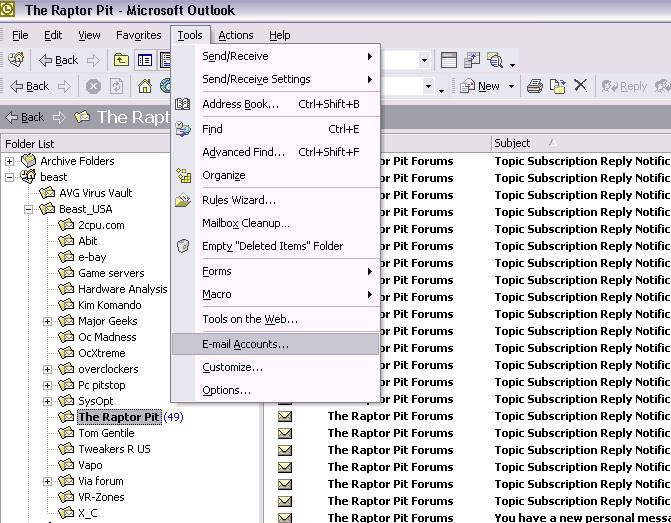
This should walk you thru setting up most e-mail servers in Microsoft Outlook 2003. Click Tools, then click E-mail Accounts.
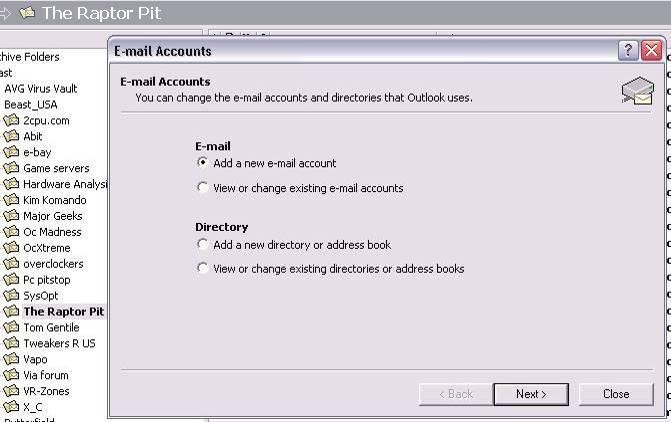
Check Add a new e-mail account and click Next.
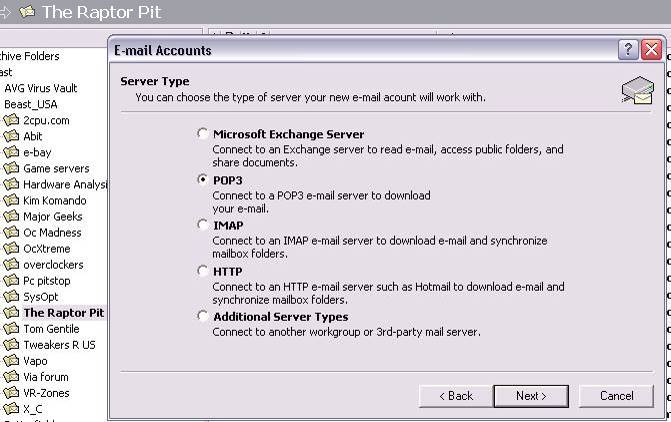
Check your e-mail server type, (POP3) then click Next.
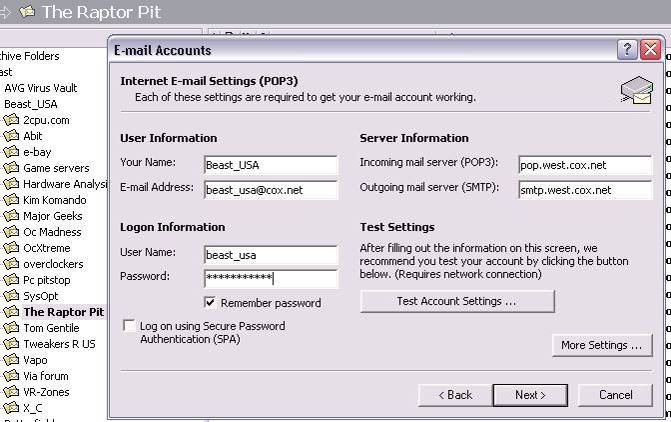
Add your name, e-mail address, user name & password. Check Remember password, Add your Incoming mail server (POP3) and your Outgoing mail server (SMTP). (your ISP will provide this) Click Test Account Settings, it will send a test e-mail if all the settings are correct all is good. If it gives you an error, read the error, wrong password, no such server check your spelling make sure all your settings are correct and try again. If it says test email sent Click Next.
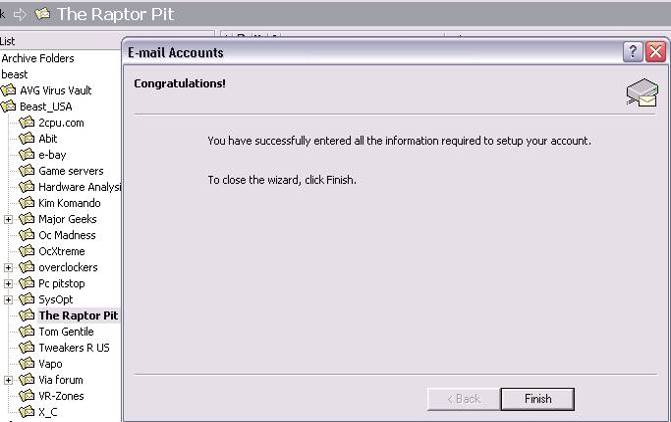
Then click Finish your all done.